

How To Add Android App To Smart Tv
How to install apps from external sources in your smart android TV
January 14,2019 6 comments

Nothing is as frustrating as having to contend with the restrictive app stores in most of the smart TVs. Most of the application managers have very limited apps in their stores and lack the most sought after apps like Netflix, YouTube, and Spotify etc. In this tutorial, we are going to discuss how to install these apps from external sources.
Prerequisite
This tutorial will require the following items:
- Android smart TV (Any brand can do)
- Android smartphone (Any make can do)
- ES File Explorer
- Network connection preferable Wi-Fi
Install ES File Explorer File Manager
The first step is to install ES File Explorer from your favourite app store. The recommended one is the Google Play Store .
- Download and install Google Play store (comes preinstalled in most android phones)
- Search for ES File Explorer File Manager
- Install the app
.jpeg)
Network Connection
Ensure both Smart Tv and the smartphone are connected to the same network preferably a Wi-Fi connection.
Install ES File Explorer File Manager in the Smart TV
The next step is to install ES File Explorer File Manager on the Smart TV. To achieve this, follow the steps below:
- Open ES File Explorer installed on the smartphone.
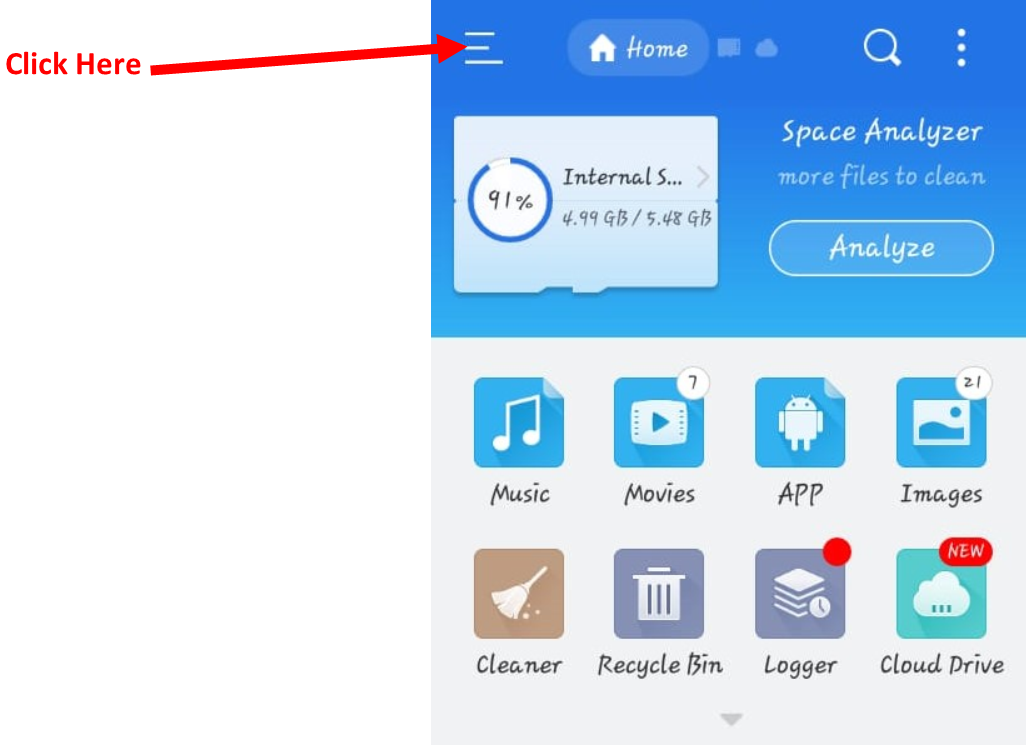
- Press the menu on the top left corner. Open a side menu.
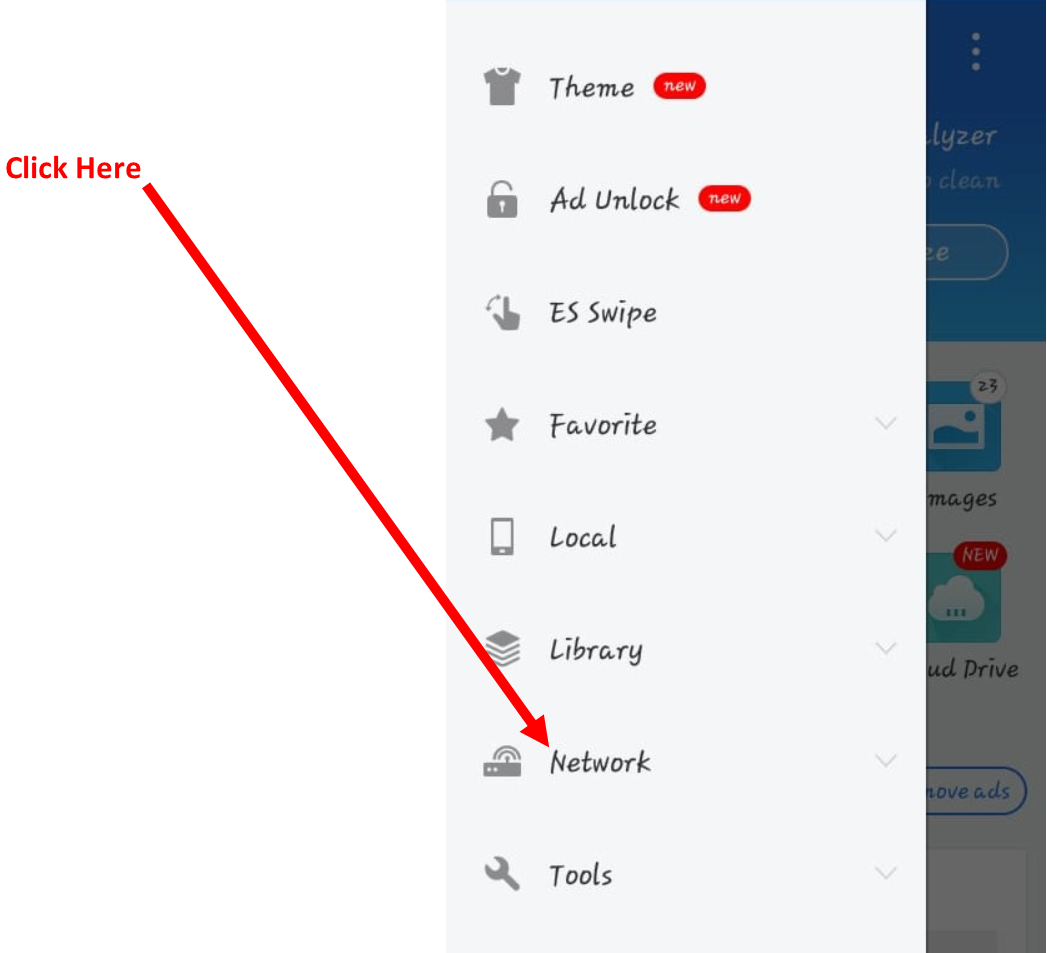
3. Navigate to the Network Menu
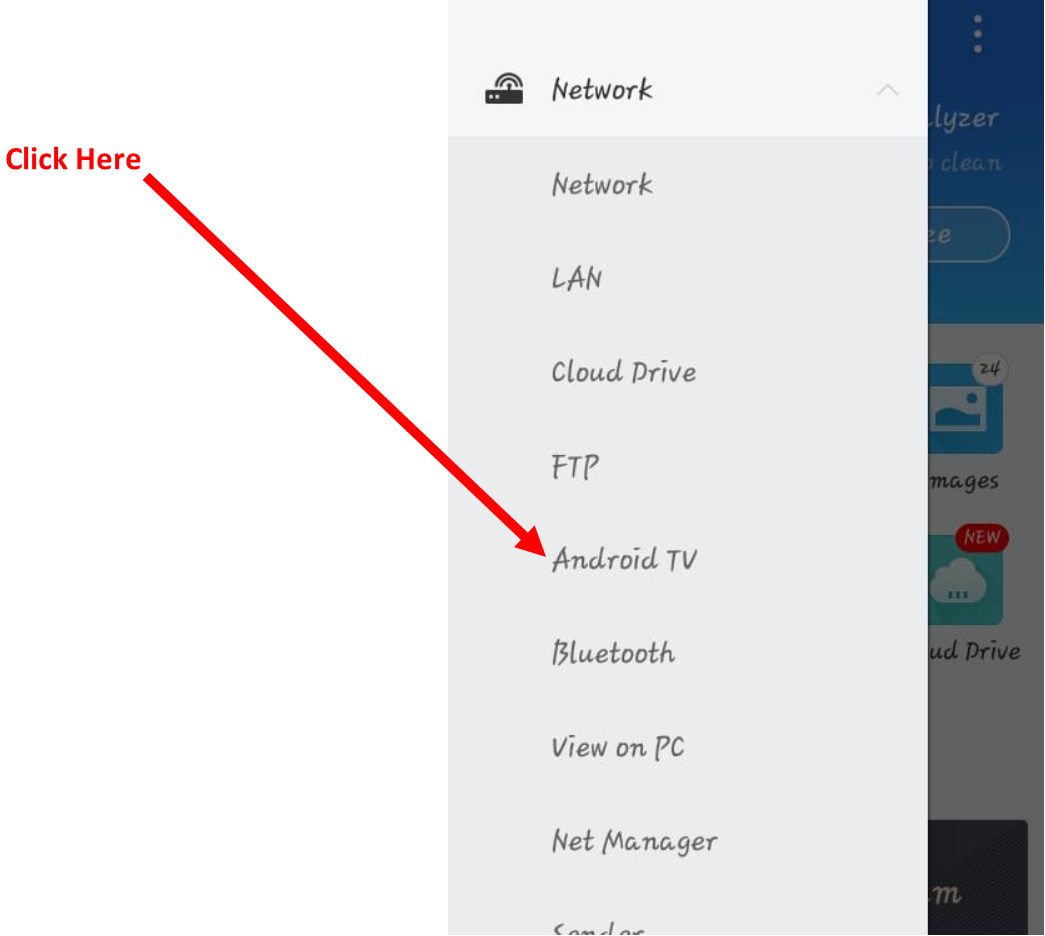
4. Click on the dropdown and select Android TV. Loads a new window.
5. Click on Scan button. The app will scan for available devices and load them in the list.
6. Select your Smart TV from the list (in most cases, it usually the only item listed in the menu).
.jpeg)
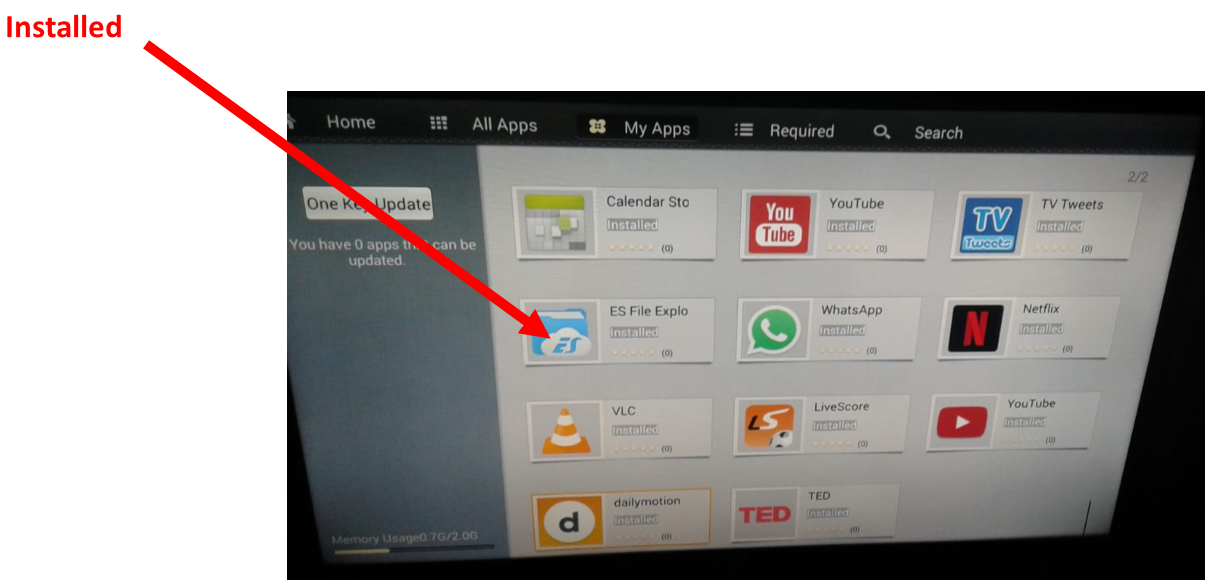
8. ES File Explorer will be automatically installed on your Smart Tv. To confirm installation, go to the application manager in your Smart TV and navigate to the list of installed apps. ES File Explorer should be one of the apps.
Install App Of Choice
Finally, you can install the application of choice. There are three methods that can be used to install an app into your smart TV now that ES File Explorer File Manager is already installed.
Method One: using a smartphone
For this method to work. You have to ensure that the smartphone and the smart TV are still in the same network then follow the steps below:
- Install the app on your smartphone.
- Open ES File Explorer File Manager and click on APP menu. A new window with a list of the apps installed on the smartphone will show.
- Long press on the app you have just installed and click More
- Select Install To Tv from the menu that pops up.
- Wait for the app to be installed in the Smart TV.
.jpeg)
Method Two: Using removable devices
- Download the apk file for the application you want to install
- Copy it to an external device and insert the external device (flash disk, memory stick or any other device your smart TV can read) to the smart TV.
- Open ES File Explorer File Manager in your smart TV and navigate to the apk in your external device.
- Click it and select install.
Method Three: Using Google Play Store
Assuming that the app you want to install can be found in the Google Play store.
- Install Google Play Store into your smart TV using either method one or two.
- Open google play store.
- Search for the app you want and install it your Smart TV just the way you normally do it on your smartphone.
Whichever method you decide to use, the app of choice should be installed on your smart TV.
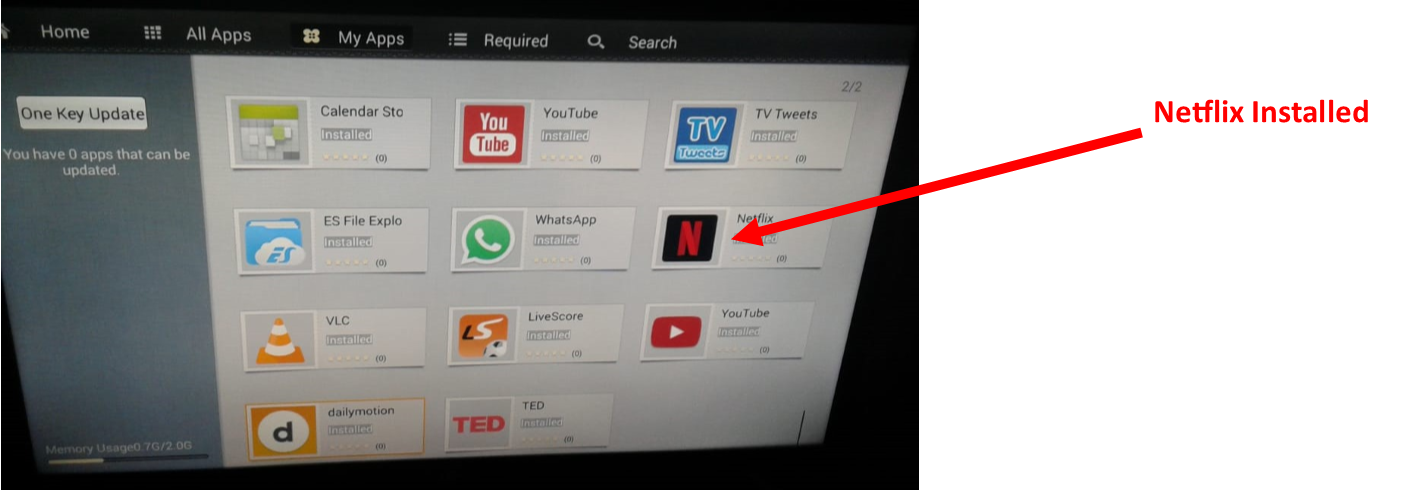
That's it. Enjoy using your favourite app on your smart TV. We will be releasing more hacks and tutorials in the coming weeks so stay tuned.
How To Add Android App To Smart Tv
Source: https://www.talwork.net/how-to-install-apps-from-external-sources-in-your-smart-android-tv
Posted by: ferraraemparch.blogspot.com
This article about streaming apps is really helpful, especially for users who enjoy watching entertainment on their Android devices. I appreciate how clearly you explain the features and things to consider before choosing an app. I have been exploring Xuper Hydra Descargar recently, and I find it interesting to learn how different streaming applications work. A simple interface, smooth navigation, and convenient access to content can make a big difference in everyday use. Your tips are useful for anyone looking for a better viewing experience. Thanks for sharing such practical information in an easy-to-understand way.
ReplyDeleteI really appreciate this article because it provides useful information and explains the subject in a straightforward manner. I have been curious about Xuper TV Gratis and wanted to see what kind of entertainment experience it could offer. I enjoy watching movies and TV shows when I have time to relax, and I usually look for apps that are simple to understand. Using an Android device for entertainment is convenient for my daily routine. The information in this post gave me a better idea of what to consider when exploring an app. Thanks for sharing your experience and making this topic interesting.
ReplyDeleteYour article is very informative and helpful for people who enjoy watching entertainment content on Android devices. I liked the way you explained the topic because the information is easy to understand even for someone who is simply exploring different apps. I have recently been learning more about Freecine APK because I am interested in movie and TV applications link https://freecine.com.br/. Watching content on a phone can be convenient, especially when traveling or relaxing away from a television. For me, a good application should have straightforward navigation and reasonable device compatibility. Thanks for sharing this useful information and giving readers more ideas about Android entertainment applications.
ReplyDelete